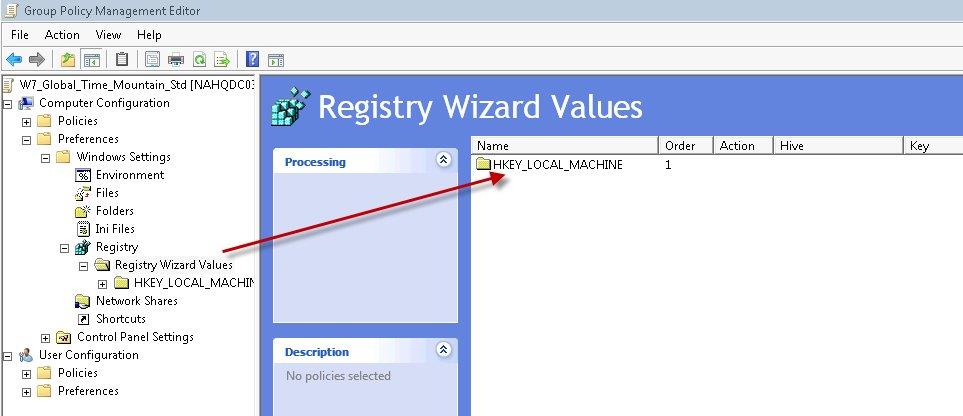
Setting the time zone on computers via a group policy object (GPO) is a common requirement and very easy to do. I recently found myself rolling out a new server and computers in the Mountain Standard Time Zone and realized I hadn’t created a GPO for this geographic area yet. Fun fact, did you know that Arizona is the only state that does not observe daylight saving time (DST)? I didn’t know. So I found myself whipping up a GPO as quick as I could so that we could start deploying brand new desktops to our associates. By the way, if you are looking for a GPO good reference, check out Jeremy Moskowitz’s book at Amazon. You won’t be disappointed.
The time zone setting for each Windows 7 computer is stored in the following registry location:

\HKLM\System\CurrentControlSet\Control\TimeZoneInformation\
Here are the steps to use to push time zone settings via group policy in a Windows Server 2008 R2 environment.
1. Temporarily change your computer to the time zone you want to push out via group policy.
2. Open the group policy management console GPMC.msc and create a new GPO. Name the GPO something relevant like TimeZoneMtnStd.
3. This will be a Computer GPO so expand Computer Configuration, Preferences, Windows Settings, Registry.
4. Right-click Registry and select New, then Registry Wizard.
5. Select Local. You could obviously navigate to a computer which already has the appropriate time zone set. I like to set it on my local computer temporarily and grab the registry settings from there.
6. Navigate to \HKLM\System\CurrentControlSet\Control\TimeZoneInformation\
7. There are really three main registry items that you will need; Daylightname, Standardname and Timezonekeyname. However, I had some difficulty getting the Mountain Standard (Arizona) time zone to work using just these three settings. So I selected ALL of the registry items in the TimeZoneInformation registry key.


8. Select Finish to end the wizard.